Page 51
Supplement 2. Interface Changes in V2.0
───────────────────────────────────────
ShutterBug Version 2.0 brings many improvements to the user interface:
improvements to the Content and Preview windows, additions to the Layout window,
and significant changes to the Export window and Theme Library. There are also a few
more additions to the Preferences pane and Main Menu. The following is an outline of
the main interface changes from V1.0 to V2.0.
User Preferences:
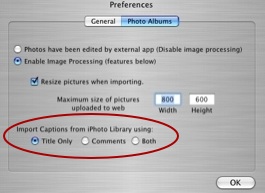
• Option to import iPhoto Titles, or Comments, or Both, has been added
to the Photo Albums tab.
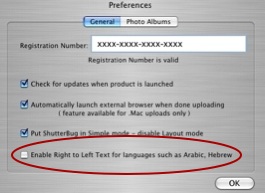
• Right to left text handling option has been added to the General tab.
• Note: ShutterBug V2.3 and later contain a new Preferences pane. If you are using
V2.3 or 2.4, please see this post at our support board to review the changes on
image processing.
Main Menu Additions:
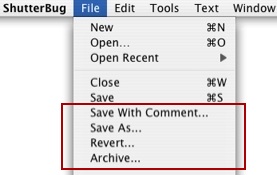
File Menu Only:
• Save with Comment
• Save As
• Revert
• Archive
Content Window:
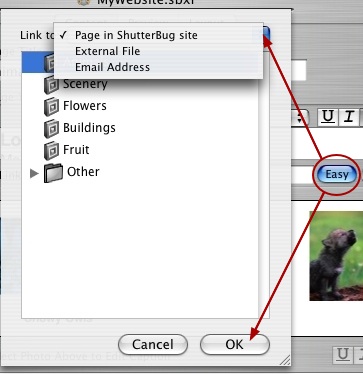
• Easy Button and new slide out panel for inserting links has been added.
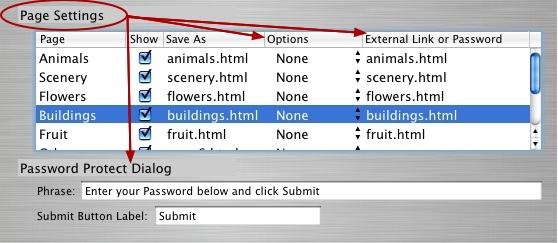
• Navigation Options now called Page Settings. Additions to the Page Settings options
include: add external links to the navigation menu and password protection for
private viewing on the web.
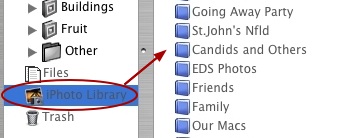
• iPhoto Integration
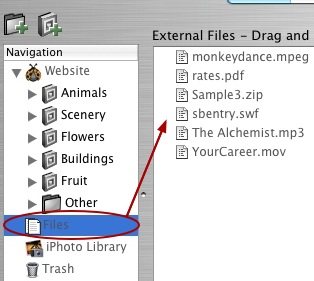
• Files Interface for adding & uploading external files with your site.
Preview Window:
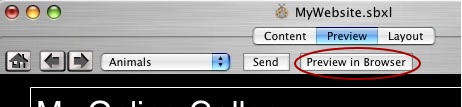
• Preview in External Browser button has been added that allows you to view your site
in your default browser of choice.
Export Window:
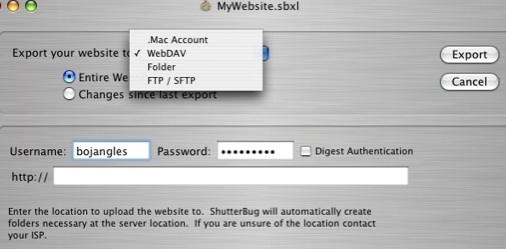
• New and Improved Export Window is now inside the main application window
replacing the old two-step panels that were only accessible from the main menu.
• FTP/SFTP support has been added (V2.0 & 2.1 require Transmit or CyberDuck).
• Built-in FTP/SFTP support for V2.2 and later (does not require Transmit or
CyberDuck. Click here to learn more).
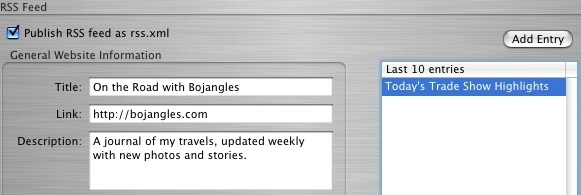
• RSS Feed options have been added.
Layout Window:
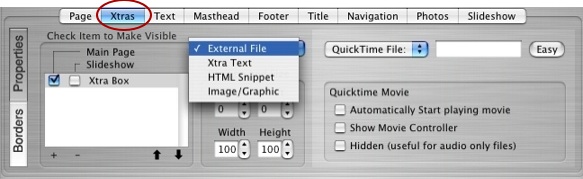
ShutterBug Xtras: New Xtras tab added to the Layout window lets you add the
following items to your web pages:
• Flash and QuickTime movies; MP3s and other audio file formats
• Contact forms, page counters, HTML snippets, external HTML pages
• Unlimited Xtra text and image boxes
• Layered images and thumbnail rollovers
Other Changes to the Layout Window:
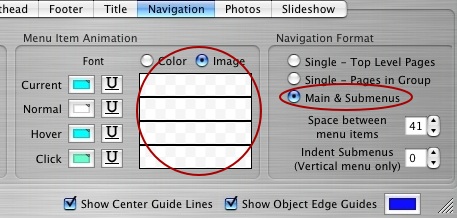
• Navigation submenu option and inserting background graphics for menu items have
been added to the Properties section of the Navigation tab.
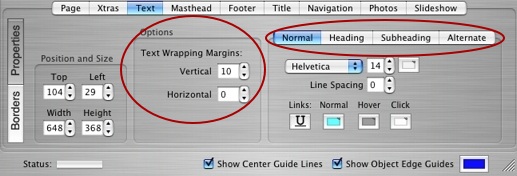
• New option for vertical & horizontal text wrapping margins around other objects has
been added to the Properties section under the Text tab.
• Font selections under the Text tab is now a tabbed section on the Properties
interface. Two more font selections have been added - Subheading and Alternate.
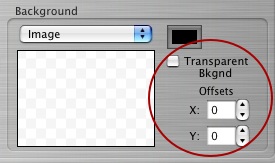
• Background image offsetting and images with transparent background options have
been added to the Borders section for all element tabs (excluding the Page tab).
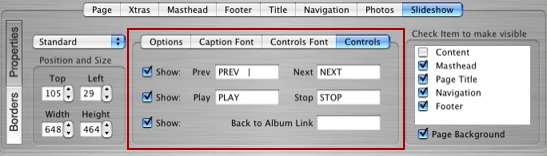
• The Slideshow interface adds a new tabbed section for editing the slideshow options
and components.
Templates:
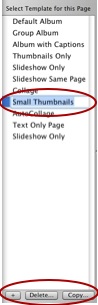
• Copy Settings from one template to another, has been moved from the main menu to
a button in the template drawer.
• Add Template feature to automatically convert custom pages (for V1.x users) to a
template - "Customize this page" has been removed from the interface and replaced
with a new Add (+) Template button, which has been moved off the main layout
window and into the template drawer.
• Remove unused templates option has been moved from the main menu to a Delete
button at the bottom of the template drawer interface.
• The template drawer does not show a thumbnail representation anymore. The
thumbnails have been replaced by template text titles that can be renamed.
"Editing template name and icon" panel has been removed, as it is no longer needed.
• Yellow notification bar tells you when you are using a template that is used by other
pages.
Theme Library:
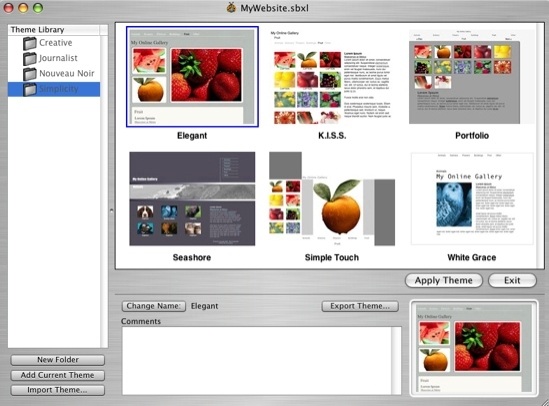
The theme library has undergone a complete overhaul of the user interface, as well as
the addition of some fresh new themes. The new theme library window offers many
improvements and adds some handy user specific options for managing themes:
• Folder list of themes displays the contents of each folder as theme thumbnails;
themes are stored and listed in alphabetical order.
• Add New Folder option for adding new folders to the theme library list.
• Option to edit the folder names in the library list.
• Add and save your created theme to the library.
• Import and Export buttons have been added to the library window interface (also still
available from the main menu).
• Rename theme titles (Change Name) and Add Comments options have been added
for individual themes.
• New image well added for dragging and dropping images for your theme thumbnails.
• Ability to delete themes from the library has been added (delete key).
• Cancel button replaced with Exit button lets you make changes to the library without
having to apply a theme. The changes are automatically saved.
• Slide out panel giving you the option to either Replace your current theme or just Add
more templates to it.
───────────────────────────────────────