Before you can send your images, you'll have to let ImageWell know where to send
them.
Location, Location, Location
At the bottom of the ImageWell window, resides a button labeled 'Locations'. Click this
button to reveal the Locations Editor. The Locations editor lets you add, manage or
delete the places you want to send your images to.
Select the Type of Location
ImageWell can send to iDisk (.Mac), FTP, SFTP, WebDAV or to a folder on your computer.
The first step to setting up a location is to pick the type of location. If you are unsure of
the type of location, you'll need to contact your web host for more details.
Host Name
If you are using iDisk, ImageWell fills this field in for you. For other locations, type in the
name of the server. Note: do not type in the ftp:// or http:// prefix - just type in the
name. For example, ftp.myserver.com.
Username and Password
If you are using iDisk, the username will be the name without the @mac.com. For
example, our username is xtralean for our iDisk (not xtralean@mac.com).
For other web hosts, type in the username and password assigned to you. If your
username has a '@' in it - such as your email address is your username, you might have
to replace the '@' with a '#'. You'll have to try both ways as every server is different.
For example, if your username is someone@someplace.com and that doesn't work,
then try someone#someplace.com.
Directory
If you are using iDisk, then the Directory will either be Public or Pictures - depending on
where you want to send the image. If you are not sure which one to pick, either place
works fine.
For other web hosts, you'll need to consult the documentation provided to you by your
web host. With some hosting companies this field can be blank, while others require
you to include a folder such as 'public_html' or 'www' in order to upload the picture to
your website.
*Sending to a Sub Folder*
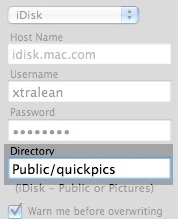
You might not want to send the image to the root
folder, but rather to a subfolder on your server. Simply
add a '/' followed by the sub folder's name.
For example, let's say you want to send an image to a
subfolder called 'quickpics' in the Public folder of your
iDisk. Type in 'Public/quickpics' as illustrated in the
screen shot to the right.
ImageWell will create any folders that are required on
your server.
Warn Before Overwrite
If you would like to be warned if an existing file with the same name is already on your
server before ImageWell overwrites it, then check the box - "Warn me before...". If the
same filename already exists, you'll be given the option to overwrite it or cancel the
action from within this warning box:
Setting Up the URL
One of the unique features of ImageWell is the ability to automatically copy a URL of the
image you just uploaded, onto the clipboard. This feature is handy for pasting the URL
into your email message, into discussion board posts or if you are hand creating a HTML
page. Before you can use this feature, you'll need to type in the URL of the location you
just entered, into the bottom text entry box ('URL for viewing...').
If you are sending to an iDisk, ImageWell will automatically fill the URL in for you. Other
hosts will require you to type it in manually. For example, if you are sending to
ftp.mydomain.com, the URL to view your website would be different - possibly
www.mydomain.com.
Now, it's time to send your image - goto to Part 2.