
Page 38
7.7 Slideshow Tab
ShutterBug offers various options for creating and customizing slideshows to your
liking. You can stick with a standard slideshow format or get a little more creative and
customize each item in the slideshow. The features offer the freedom and flexibility to
achieve a high quality slideshow presentation that will render correctly in all modern
browsers on multiple platforms - and without any extra hassle to you. Click the
Slideshow tab to reveal the editing options for your slideshow pictures. Like the other
elements on your page, the interface is divided into two subsections: Properties and
Borders. Version 2 brings a revised slideshow interface which is easier to use than in
previous versions.
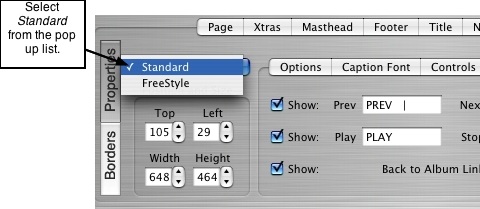
The first option at the top left corner of the Properties interface contains a pop up list of
two slideshow types: Standard or FreeStyle. Before editing any of the slideshow
attributes, choose which slideshow type you would like to use. The Standard slideshow
option keeps the slideshow pictures, control labels, and captions bound together in a
format that is more constrained than FreeStyle. The FreeStyle option breaks each
component apart, allowing you to resize and position the control labels, captions, and
slideshow pictures as independent items. Use the Standard option to create a nice-
looking slideshow, the quick way; use the FreeStyle option to tweak each component
and create something different that meets your specific needs. Follow the instructions
below to learn more about which option is best for you.
───────────────────────────────────────
Using the Standard Slideshow Option
Slideshow Properties
The following section outlines how to edit the slideshow properties for a Standard
slideshow presentation. Using the Borders interface is covered at the bottom section of
this page. To begin, first select Standard from the pop up list at the top left corner of
the Properties interface, as shown in the following picture:
Position and Size of Your Standard Slideshow
1. Use your mouse to grab the slideshow bounding box in the viewer window and drag
it to the desired position on the page. Select and pull the grab handles with your
mouse to resize the slideshow box.
2. Alternatively, you can use the spinbox controls under the Position and Size heading
to position the slideshow box on the page, and adjust the width and height to resize the
slideshow box. The photo will adjust accordingly maintaining its original aspect.
Slideshow Options, Captions, and Controls
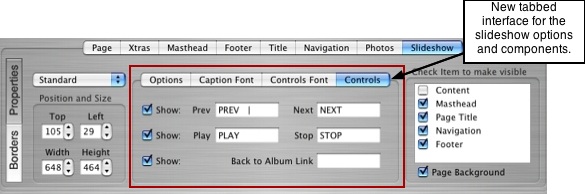
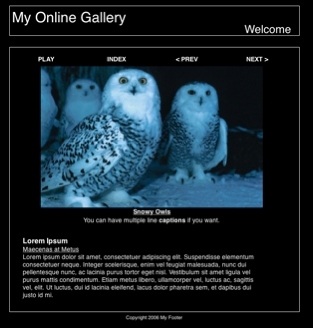
The middle section of the Properties interface contains 4 tabs that will let you edit the
caption and control fonts, add and edit the control label text, add a fade effect, top
align the photos, and many more useful items for your slideshow. The attributes for
your slideshow are independent from your thumbnail settings. Any changes make to
items in the thumbnail and slideshow views will not affect one another. As you make
your changes to the slideshow view, you can see the changes reflected in the viewer
window (with the exception of the fade effect and auto start features).
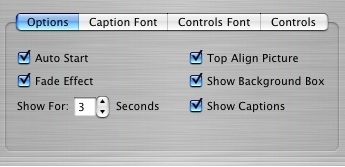
Options Tab:
• Auto Start - To have your slideshow automatically start when opened, check off the
Auto Start check box under the Options tab. To remove the auto start function,
uncheck the box.
• Fade Effect - To include a fade transition between each slide, check off the Fade
Effect check box. To remove the fade effect, uncheck the box.
• Timed Delay - The Show For option below the Fade Effect box will let you create a
timed delay between each slide. Use the spin box control to enter the number of
seconds you would like for each slide to display before the next slide is shown. A timed
delay is only applicable when the Play control is activated for viewing the show. If
viewers are using the Next and Previous controls, they will naturally be viewing the
slides at their own pace.
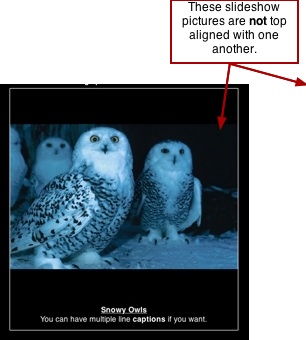
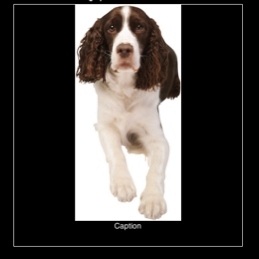
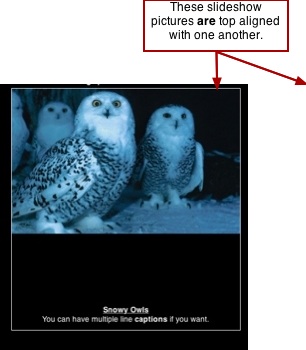
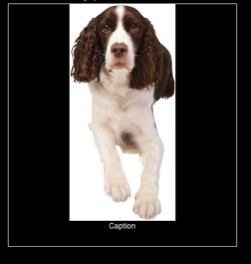
• Top Align Picture - You can choose to top align your slideshow pictures so they all
line up at the same top position. This option is handy when you have a variety of
portrait and landscape pictures, or pictures that all vary in height, in the same
slideshow. The Top Align feature will display the top of each photo at the same position
instead of displaying at different top positions within the slideshow box. To activate this
feature, click the Top Align Picture check box. You will see the picture in the viewer
window jump to the top of the slideshow box. To deactivate this feature, click the box
again to uncheck it. Note: Enable Image Processing must be turned on in your user
preferences for this feature to be applicable.
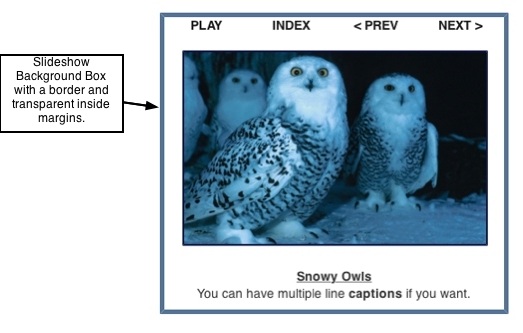
• Show Background Box - The background box is the box that surrounds the slides.
This box is used for adding an outside frame or background color to the slideshow
viewer window (not the same as adding a frame to the slideshow photo). You can
choose to show or not show this box by checking or unchecking the Show Background
Box check box.
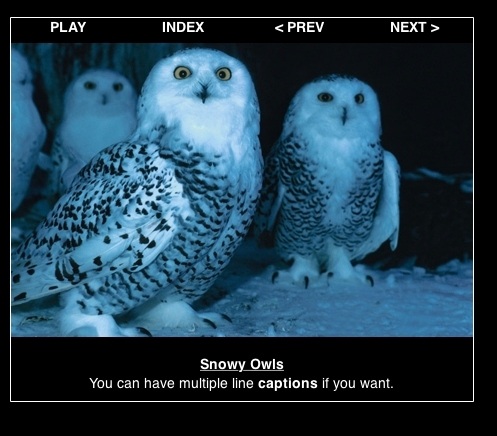
• Show Captions - Click this check box to show the captions (or iPhoto comments) with
each photo in your slideshow. If you are using multi-line captions, all lines will appear in
the slideshow. Leave the check box blank to turn the captions off for the slideshow
view.
Caption Font Tab:
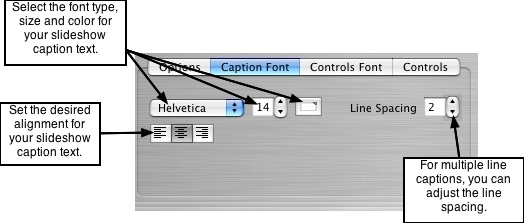
• Select the Font Type - Click on the first pop up list to reveal the list of fonts available
in ShutterBug. From the list, select the font type for your slideshow caption text.
• Select the Font Size and Color - Click the font size spin box control to select the font
size for your slideshow caption text. Click the color well to select the font color for the
caption text.
• Line Spacing - If you are using multiple line captions, you can adjust the line spacing
(line leading) between each line. Click the spin box control to increase or decrease the
amount of space between each line in the caption text.
• Alignment - Select from the corresponding alignment icons to left, center, or right
align the caption text in the slideshow box.
Note: Bold, Italics, and Underline for the slideshow caption text can only be applied
from within the Content window.
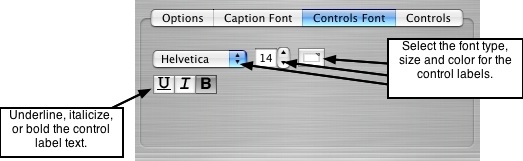
Controls Font Tab:
The attributes for the Control fonts are applied to all of the Control labels. You cannot
edit each control font separately. Controls include the Previous and Next buttons, Play
and Stop buttons, as well as the Back to Album or Index button.
• Select the Font Type - Click on the first pop up list to reveal the list of fonts available
in ShutterBug. From the list, select the font type for your slideshow control labels.
• Select the Font Size and Color - Click the font size spin box control to select the font
size for your slideshow control labels. Click the color well to select the font color for the
controls.
• Font Style - Select from the corresponding style icons to underline ( U ), Italicize ( I )
or Bold ( B ) the control text.
Note: The control labels for a standard slideshow are placed in a default position.
Therefore there are no editing options for the alignment of the control text.
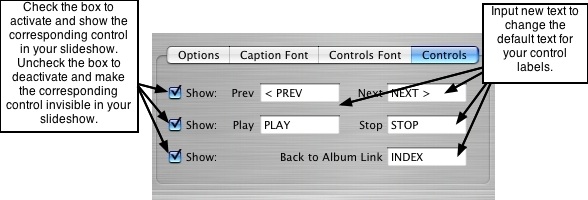
Controls Tab:
The slideshow controls are the buttons people will use to navigate through your
slideshow while viewing. These controls all share the same attributes except for the
names that you assign for each label. The font type, size, color, and style that you
previously selected under the Controls Font tab get applied to all of the controls.
• Prev and Next Controls - To show and activate the Previous and Next controls for
your slideshow pictures, click the first check box labeled Show under the Controls
interface. Each control has a text field for inputting the label or name of the control.
ShutterBug's default will have the labels set to read <<Prev and Next>> . To change
this text, click in the corresponding text field and input the desired labels for the
Previous and Next controls. To make these controls invisible on your slideshow,
uncheck the corresponding Show box.
• Play and Stop Controls - To show and activate the Play and Stop controls for your
slideshow, click the second check box labeled Show under the Controls interface. Both
controls have a text field for inputting the label or name of the control. ShutterBug's
default will have the labels set to read Play (or AutoPlay) and Stop . To change this
text, click in the corresponding text field and input the desired labels for each control.
To make these controls invisible on your slideshow, uncheck the corresponding Show
box. Note: The Auto Start feature under the Options tab does not require the Play/Stop
controls to be included in the slideshow; Auto Start works on its own regardless of
whether or not you have included the Play/Stop controls.
• Back to Album Link - To include a control that will take users back to the album's
thumbnail view when they click on it, click the third check box labeled Show under the
Controls interface. The Back to Album Link has a text field for inputting the label or
name of the control. ShutterBug's default will have the label set to read Index. To
change this text, click in the text field and input the desired label. To make this control
invisible on your slideshow, uncheck the corresponding Show box.
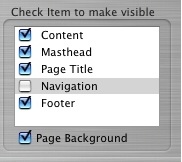
Check Item to Make Visible
The last section on the Properties interface allows you to select which items (elements)
to include on the page with your slideshow. Any or all of the elements in the list can be
displayed with the slideshow view, allowing you to further customize your slideshow
presentation. Including the other elements means you will have to position your
slideshow around them accordingly - the other elements cannot be moved around.
The slideshow picture, background box, and the control labels and captions, are the
only editable items when in slideshow mode. Check or uncheck the corresponding
check box to show or not show each element in the list. You can see these changes in
the viewer window.
Below the item list, you also have the option to show or not show the page background
in your slideshow view. Page Background refers to an image background, but not the
color of the page background. The background color of the page for your slideshow
will be the same color as the background color you selected for your pages under the
Page tab. If you have used an image or tiled image in the page background for your
site, it may clutter, clash or interfere with the colors and options you choose for the
slideshow. This check box gives you the option to turn off such images for the
slideshow view. Check the box to make the page background appear in your slideshow
view; leave the box blank to keep the page background invisible during slideshow
view. Note: Making the Page Background invisible will NOT remove or change the
page background color; this option only applies to an image background.
───────────────────────────────────────
Using the FreeStyle Slideshow Option
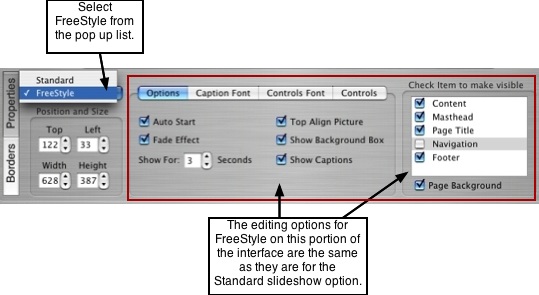
The editing options for FreeStyle are exactly the same as they are for the Standard
Slideshow, with the exception of how positioning is handled. The difference between
FreeStyle and Standard is that the FreeStyle option breaks the slideshow components
apart, allowing you to freely position them anywhere you want, independent of each
other. This means you can place the captions and controls at the side, bottom, or top
of the picture, and align them however you want with total freedom. You can also align
and resize the background box separately from the slideshow picture.
Select FreeStyle from the pop up list located at the top left corner of the Properties
interface. Click on a component with your mouse to select it in the viewer window. The
selected component will have a grab handle box. Use your mouse to drag the
component around on the page to the desired position. Pull the grab handles to resize
the component. Do the same with all of the other components in the slideshow until
you have positioned and resized to your liking. Alternatively, you can use the Position
and Size spin box controls to move and resize the components, but the drag and drop
approach is much faster. All other editing options under the Properties interface for
FreeStyle slideshows are used exactly in the same way as they are in Standard mode.
───────────────────────────────────────
Slideshow Borders
The editing options under the Borders interface are the same for both Standard and
FreeStyle slideshows. Click the Borders button to reveal the options available for your
slideshow borders, margins, background, and background box. The interface is divided
into two subsections: 1. Picture Frame and 2. Background Box. The Picture Frame
options apply to the slideshow pictures, while the Background Box options apply to the
surrounding box that holds your slideshow pictures. If you previously chose not to
show the background box while in the Options tab under the Properties interface, the
border settings for the background box are not applicable.
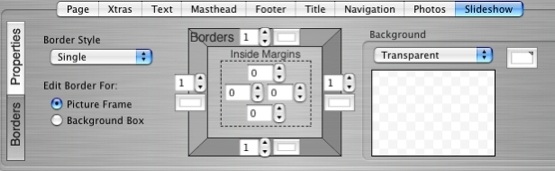
1. Picture Frame:
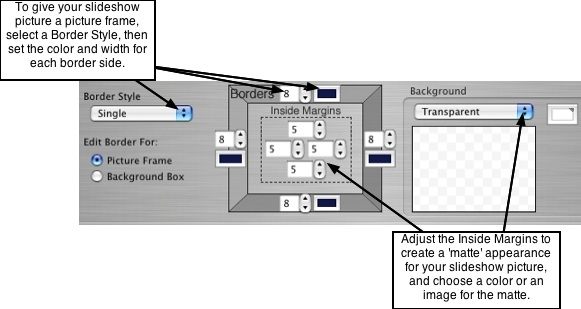
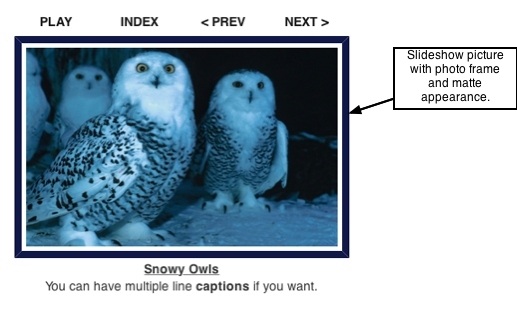
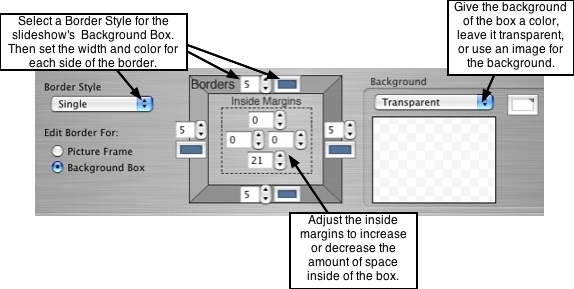
To give your slideshow pictures a photo frame, click the Picture Frame radio button.
The border style, size, and color settings work exactly the same as they do for all the
other elements on your page. Simply select the style from the pop up list, choose the
colors, and use the spin box controls to increase or decrease the width of the border
for each side of the picture. To include an inside margin to serve as a matte, increase
or decrease the inside margin values to the desired width on each side. Then select
the background color, leave it transparent, or select to use a background image from
the pop up list of Background options. To review how to use the border tools, please
see the Borders section on The Photos Tab page.
2. Slideshow Background Box:
If you formerly chose not to show the background box when you were in the Properties
section, then the options under the Background Box button do not apply. You can use
the background box to create an interesting backdrop for your slideshow pictures. To
add a border and inside margin to the background box, click the Background Box radio
button. The style, color, and width of the border options, as well as the inside margin
options work the same way as they do for the other elements, and will therefore not be
repeated here.
───────────────────────────────────────
Now that you have finished editing your slideshow, click the Preview tab at the top of
the main application window to web preview your slideshow.
───────────────────────────────────────