v
Step 3. Add Your Photo Galleries & Text Content
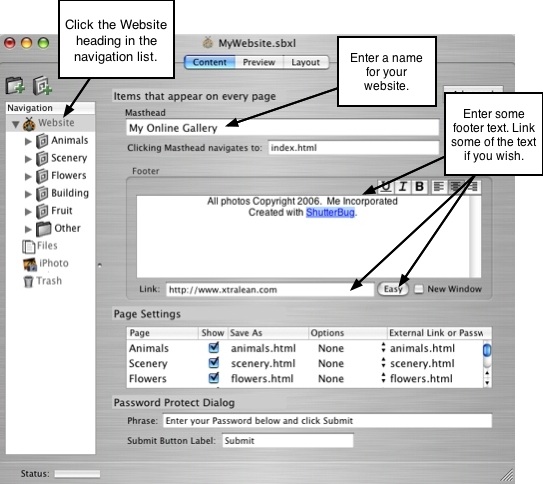
In the Content Window, set the Properties for Your Entire Website:
• Go to the Navigation list and select the top heading entitled Website.
• Enter a name for your website in the Masthead text field.
• Enter some text for the Footer of your website.
Add Album and Group Pages:
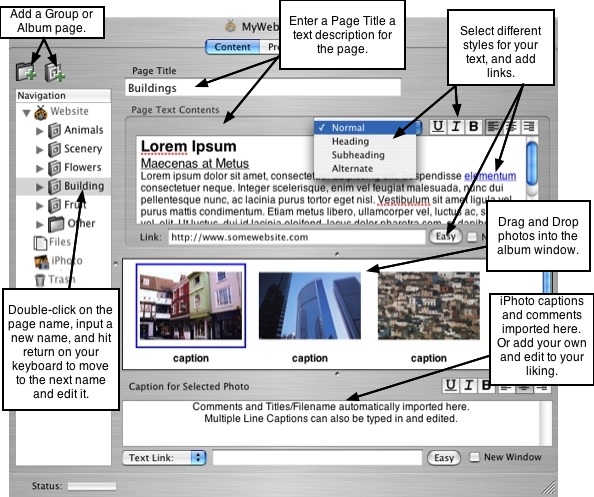
• Click the Add Group & Album icons to add new group & album pages to your website.
• To nest albums within a group, first add a group. Then select the group and click the
Add Album icon.
• Give each page in the Navigation list a title by double-clicking on the text field and
entering a new name.
• The name you assign each item is the text that will appear in your navigation menu.
Import Photos & Add Text Content to Your Album Pages:
• Select the first album page in your navigation list.
• Drag and drop photos from iPhoto or another folder into the photo album window. Or
use the integrated iPhoto window to drag photos to the album in the navigation list.
• Double-click the photos to edit them in the built-in ImageWell editor.
• Add Captions and Watermarks to your photos (watermarks available from Tools on
the main menu).
• Enter a Page Title for each album and a Text description to tell a story about the
pictures.
Select the Photos and Add Text Content for Your Group Pages:
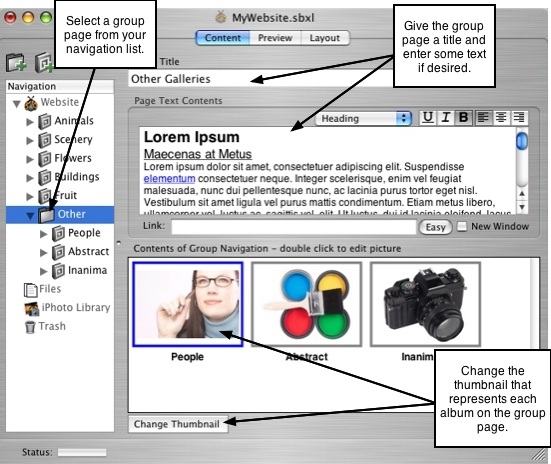
• Select the first group page in your navigation list.
• From the Group navigation window, select a thumbnail and hit the Change Thumbnail
button to select and display a different photo on the group page.
• Enter a Page Title and Text description for the group page.
───────────────────────────────────────