screen grab
Grab Tools
The new grab feature allows more grab options including screen grab from a secondary monitor that is connected to your computer. The grab feature can be accessed in three different ways:
1) From the More Drawer: Screen Grab and Screen Selection buttons are located in the More Drawer as shown in the picture below.
2) Main Menu: Screen Grab and Screen Selection can also be activated from the main menu under Tools.
3) Services Menu: Three Grab options are available under ImageWell-Services-Grab: Screen Grab, Screen Selection, and Timed Screen Grab. Unlike the first two methods above, this option will activate Apple's screen grab utility.
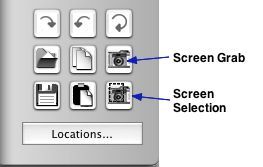
Screen Grab:
Choosing screen grab will activate the Grab feature and momentarily make ImageWell invisible. Grab will automatically import a snapshot of your screen into the image well where you can crop and edit it quickly.
Screen Selection:
Choosing screen selection will activate the Grab feature and momentarily make ImageWell invisible. When the grab cursor appears, drag your mouse over the portion of the screen you want to capture. Once you have selected the area, release the mouse to import it into ImageWell.
You can also use screen selection to grab an application window - when the grab cursor appears, hit the spacebar on your keyboard. The cursor will change to a camera icon. Move the icon to the window you would like to grab. Then click your mouse to import the window shot into ImageWell.
Timed Screen Grab:
This feature is only available through the Services menu as shown here:
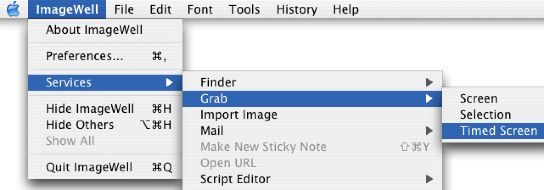
Timed Screen gives you time to move application windows or icons off the screen or out of the way prior to grabbing the screen. Selecting Timed Screen will activate the Grab Utility with a timer (this is a separate utility that will launch outside of ImageWell). ImageWell will not go invisible.
Despite the message on the Grab utility window instructing you to start the timer, the timer automatically starts on its own as soon as you launch the utility. The utility will grab the screen 10 seconds after you launch it, giving you time to move objects out of the way or to highlight specific objects. The screen image is automatically imported into ImageWell. Timed grab will only perform a full screen capture; it does not allow for screen selection.